
Your photos and files may be stored on a phone, computer, tablet, external drive, or cloud service. If one of those devices is lost, damaged, stolen, or affected by a technical problem, you could lose important memories and documents.
A reliable backup system gives you extra copies of your files in more than one place. The goal is simple: if the original files disappear, you can recover them without starting over.
Why Backing Up Matters
Many people wait to back up their files until something goes wrong. Unfortunately, recovery may be difficult or impossible after a device failure. Regular backups help protect files from common problems, including:
- Accidental deletion
- Broken or lost devices
- Power failures and hardware problems
- Water, fire, or other physical damage
- File corruption
- Lost or stolen phones and computers
A backup is different from simply keeping files on another folder or device. A good backup is a separate copy that you can access if the original is no longer available.
Use More Than One Backup Location
One of the simplest ways to improve file safety is to keep copies in different locations. A practical approach is the 3-2-1 backup rule:
- Keep at least three copies of important files.
- Store the copies on at least two different types of storage.
- Keep at least one copy in a separate location, such as online or away from home.
For example, your original photos might be on your computer, a second copy could be on an external drive, and a third copy could be stored with a cloud service. This approach reduces the chance that one event will affect every copy.
Choose the Right Backup Methods
Different backup methods work well for different needs. You do not have to use every option, but combining two or more methods can provide stronger protection.
Cloud Storage
Cloud storage saves your files on remote servers that you access through the internet. Many services can automatically upload photos from a phone or synchronize folders from a computer.
Cloud storage is useful because:
- Files can be accessed from multiple devices.
- Automatic uploads reduce the need to remember each backup.
- Your files are stored away from your home or office.
- Some services keep earlier versions of files.
Before choosing a service, check its storage limits, supported devices, recovery options, and privacy settings. Also, make sure your account has a strong, unique password and two-step sign-in if available.
Cloud storage should not always be your only backup. If you accidentally delete a file, the deletion may synchronize across devices. Check whether the service offers a recycle bin, file history, or recovery period.
External Drives
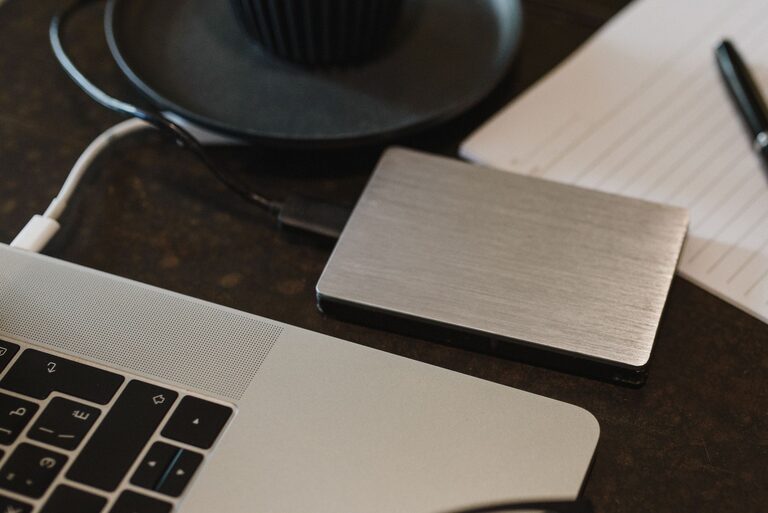
External hard drives and solid-state drives are useful for storing large photo libraries and file collections. They can be connected to a computer for manual or automatic backups.
External drives are often affordable and fast, but they should be handled carefully. Keep the drive in a safe, dry place when it is not being used. For added protection, store a second drive somewhere separate from your main device.
If you use an external drive for important files, do not leave it connected all the time. Disconnecting it helps protect the backup from certain computer problems and accidental changes.
Memory Cards and USB Drives
Memory cards and USB drives are convenient for transferring files, but they are not ideal as the only long-term backup. They are small and easy to lose, and their storage can fail without warning.
Use them as an extra copy or for moving files between devices. Keep important files in at least one other location as well.
Back Up Photos From Your Phone
Phones often contain years of photos, videos, messages, and documents. Start by checking whether your phone already has an automatic photo backup option.
To create a reliable phone backup:
- Choose a trusted cloud photo or storage service.
- Install its official app and sign in.
- Turn on automatic photo and video uploads.
- Choose whether uploads should use Wi-Fi only or mobile data.
- Open the service on another device to confirm that files are appearing.
- Keep the original files until you have verified the backup.
If you prefer not to use cloud storage, connect your phone to a computer and copy the photo folders regularly. You can then back up those folders to an external drive.
Remember that screenshots, downloaded images, and videos may be stored in different folders. Check your phone’s photo and file apps so you do not overlook important content.
Back Up Files From Your Computer
Start by identifying the folders that contain important information. These may include:
- Documents
- Pictures
- Videos
- Music
- Downloads
- Desktop files
- Work or school folders
You can copy these folders to an external drive on a regular schedule. Many computers also include built-in backup tools that can run automatically. Set a schedule that matches how often your files change. Daily backups may be useful for active work files, while weekly backups may be enough for less frequently updated folders.
Do not forget files stored in special applications. For example, an email program, design tool, or photo editor may save projects in a separate location. Review the application’s settings to find where those files are stored.
Organize Files Before Backing Them Up
An organized file collection is easier to back up and restore. Create clear folders and use names that help you find files later.
For photos, you might use folders such as:
- Photos 2024
- Photos 2025
- Family events
- Travel
- Projects
You can also include dates in file or folder names, using a format such as “2025 07 Beach Trip.” Avoid keeping many important files only on the desktop or in a general downloads folder.
Before starting a large backup, remove duplicate files and items you no longer need. This saves storage space and makes future backups faster.
Test Your Backups
A backup is only useful if it can be restored. Test your system occasionally by opening files from the backup location. Try restoring a small folder to a different location to confirm that the process works.
Check that:
- Photos open correctly.
- Documents contain the latest changes.
- File names and folder structure are preserved.
- The backup service is still connected and syncing.
- Your external drive is recognized by your computer.
Do not wait for an emergency to discover that a backup stopped months ago.
Create a Simple Backup Routine
The best system is one you can maintain. Add backups to your regular routine and use reminders if needed.
A simple schedule could include:
- Automatic phone photo uploads every day
- Computer file synchronization throughout the week
- An external drive backup once a week or month
- A backup review every few months
When you replace a phone or computer, update your backup settings immediately. Also review your storage accounts after changing passwords or switching devices.
Protect Your Backup Accounts
Backup copies may contain private photos and personal documents, so protect them carefully. Use a unique password for each storage account and turn on two-step sign-in when it is available.
Keep recovery information up to date, such as a backup email address or phone number. For external drives, store them in a secure location and label them clearly without displaying sensitive information.
With a few dependable copies, automatic tools, and occasional checks, you can create a backup system that protects your photos and files without requiring much daily effort.